
 Select language

Add Picture
- Drag the element Picture from the main toolbar to your website
- First select a picture style and then the corresponding image
- You can either select a picture from the Free Gallery
- Upload your own with a click onto Upload New Picture
Edit Picture

- Select a picture and within the Context Toolbar (1, see image) click on Change picture. Now you can
- Upload New Image into the Template Gallery
- search and insert a picture from the Free Gallery
- switch to the Picture URL tab and upload a picture from another website
Customize the Picture
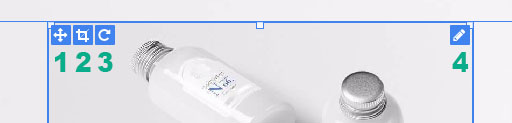
- Move
- Use this tool to move an element
- Crop
- Use this tool to crop the picture
- Rotate
- Use this tool to rotate the picture
- Context menu
- Use this tool to open an elements context menu
Right toolbar
Picture
- Opacity - define the opacity of a picture
- Border / Shadow - add a frame or shadow to a picture
- Enlarge picture on click - use this function to display a picture in a lightbox
Size
- define the size of a picture as well as the minimum/maximum size
Spacing
- define the spacing of an element
Visibility
- determine on which devices an element is displayed
Animation
- add animations to an element