
 Sprache wählen

Link hinzufügen
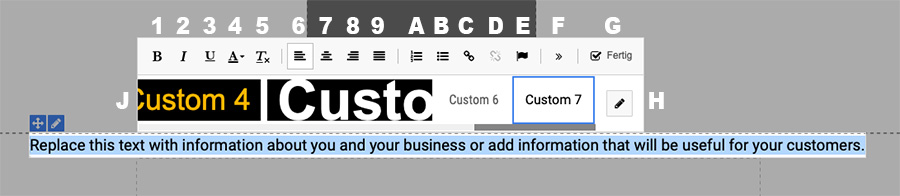
- Markieren Sie den gewünschten Text und klicken Sie auf C – Link einfügen/editieren
- Wählen Sie eine der folgenden Link Eigenschaften aus:
- Zu einer internen Seite – Wählen Sie aus der Dropdown-Liste eine Ihrer Seiten aus
- Zu einer externen Seite – Geben Sie eine externe Website an, auf die Sie verlinken möchten
- Hochgeladene Datei aufrufen – Wählen Sie diese Option, um einen Datei-Download-Link zu erstellen
- E-Mail-Adresse – Wählen Sie diese Option, wenn Sie eine E-Mail-Adresse verlinken möchten. Hinweis: Beim Klick auf einen E-Mail-Link öffnet sich automatisch das Standard-Mail-Programm des Besuchers.
- Telefonnummer – Wählen Sie diese Option, wenn Sie eine Telefonnummer verlinken möchten. Hinweis: Beim anwählen dieses Links auf einem Smartphone wird die Telefonnummer automatisch gewählt. Denken Sie daran, die Telefonnummer vollständig inkl. Ländervorwahl anzugeben. Nur so kann international eine Verbindung aufgebaut werden.
- Weiters können Sie einen Link Titel vergeben (wird angezeigt, wenn man mit der Maus über den Link fährt),
- die Website in einem neuen Fenster öffnen (bzw. in einem neuen Tab öffnen),
- die Verlinkung auf "nofollow" Link setzen (somit ignorieren Suchmaschinen diese Verlinkung)
Link anpassen
- Wählen Sie unter Einstellungen die Funktion Textstile
- Wählen Sie aus der Liste die Vorlage, die Sie bearbeiten möchten
- Klicken Sie auf die Registerkarte Links
- Bestimmen Sie die Farbe des Link Text und des Link Hover (Farbe, die der Link annimmt, wenn sich die Maus darüber befindet) sowie die Formatierung (Fett, Kursiv oder Unterstrichen)