
Knowledgebase

How can I remove/delete an additional Language?

FAQ Bild

You have unintentionally added a second language to your website and deleted the language selection element. However, your homepage and all subpages are still accessible under the language URL (e.g., www.YourDomain.tld/en). You now want to completely remove the second language version from your website.


Completely removing the second language version from the website

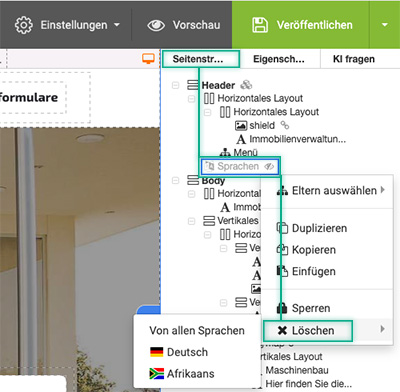
  1. In the right-hand control panel, click on Site Structure, right-click on Languages, and then click Delete


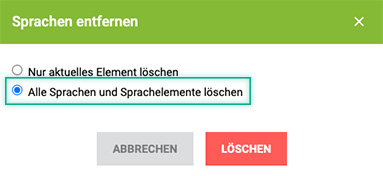
  2. Now select Delete all languages and language elements and click on Delete


  3. You have successfully removed all language versions from your website.

Was this answer helpful?

Related Articles

Why doesn't the text style change in the text element?

To understand why sometimes the text style does not change, we must first look at the different style sheets. There are three types of style sheets...

Why do the fonts in the construction kit and on the website differ?

When you add fonts to your website, it can sometimes happen that the fonts look different in the Website Builder, in the preview and on the...

How do I create a multilingual website?

The helloly website builder allows you to create multilingual websites.   Add languages Drag the Languages element from the Main Toolbar onto...

How do I create a link?

Add link Select the desired text and click on C - Insert/edit link Select one of the following link properties: Page on your Website -...

How do I add additional fonts to my website?

Select Settings and go for Styles From the list, select the template to which you want to add a new font In the Standard tab, go for Font and...