
 Select language

Sometimes a faulty plugin can paralyze an entire WordPress installation, so that you can no longer log into your WordPress installation. In this case, you must deactivate the installed plugins from outside the WordPress dashboard. You will learn how to do this in this article.
Deactivating plugins outside the WordPress dashboard
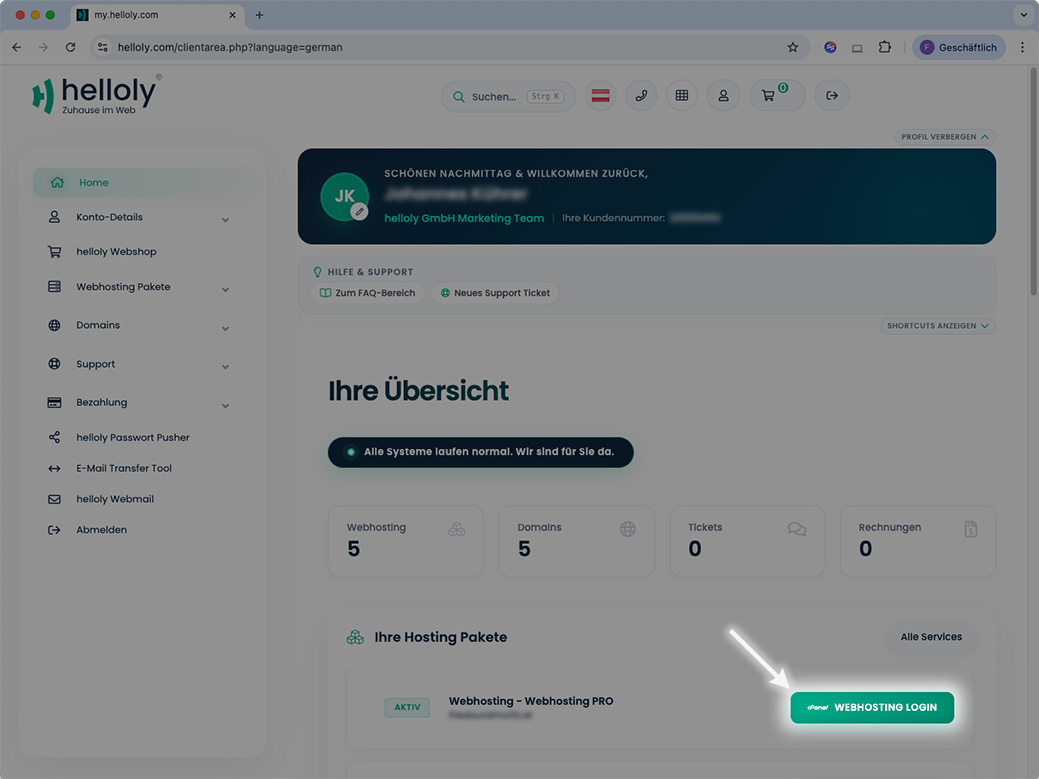
- Log into the helloly customer center via my.helloly.com
- In the Dashboard under Your active products/Services, click on Webhosting Login next to the desired package
- Under helloly Apps Installer, click on WordPress
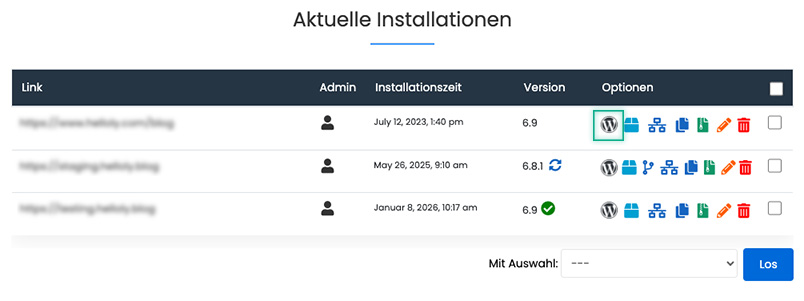
- Under Current installations, click on the WordPress icon next to the desired installation
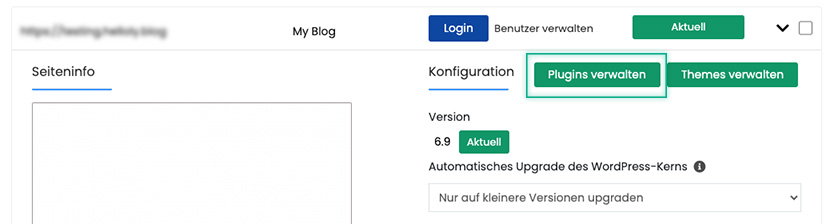
- Now click on Manage plugins
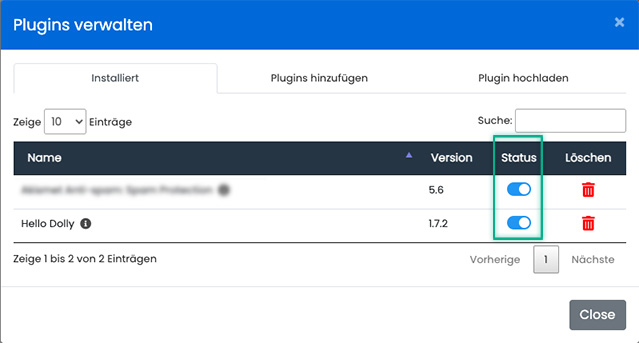
- Now you can deactivate each installed plugin individually. To do this, toggle the switch under Status so that it appears gray. The message Plugin successfully deactivated will appear.
Tip: If you do not know which plugin is faulty, it is recommended to deactivate all plugins first. Then, reactivate each plugin step by step, checking the status of your website each time until you have identified the faulty plugin.