Knowledgebase

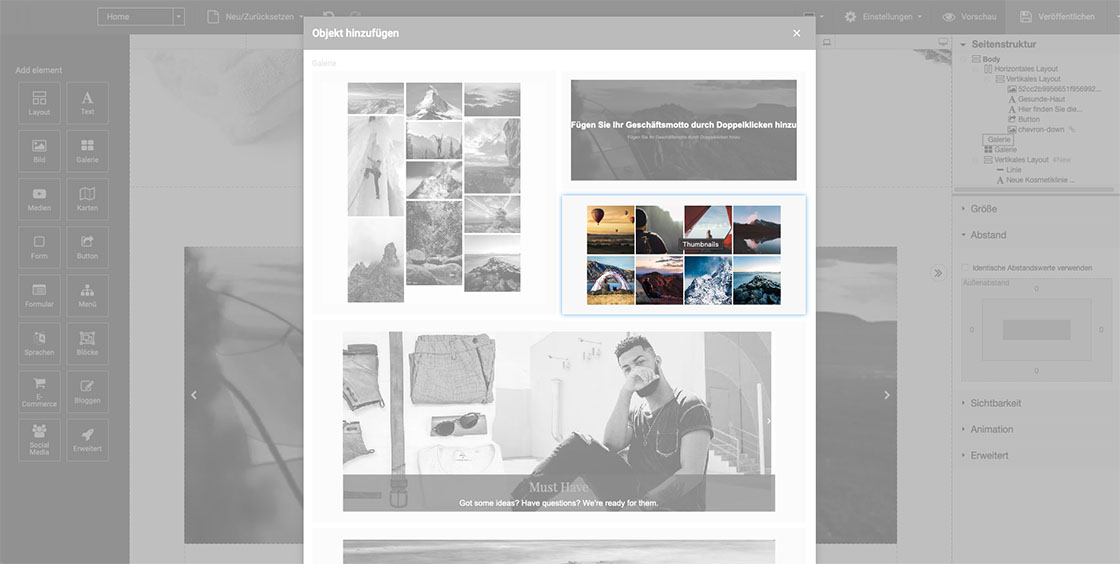
How do I use the Gallery Variant Thumbnails?

FAQ Bild

Add Gallery

  1. Drag the Gallery element from the Main Toolbar to your website
  2. Select the gallery variant Thumbnails
  3. Select the gallery and within the Context Toolbar click on Change Pictures
  4. Click on Add New to upload images
  5. In the Right Toolbar, under the Thumbnails tab, you can ...
    • define the Width and Height of a thumbnail,
    • determine the Align,
    • specify the Padding,
    • add an Animation
    • and define a Border and/or Shadow

Customize Gallery

  • Gallery images:
    Select the gallery and within the Context Toolbar click on Change Pictures. You can add a Title, Link, Address and Description to each image.
  • Background:
    Select the gallery and withing the Right Toolbar, under the Gallery tab, you will find the function Background.
  • Caption:
    Within the Right Toolbar, under the Caption tab, you can specify when captions should be displayed and in which style they should be displayed.

Was this answer helpful?

Related Articles

Can the images from the templates be used free of charge?

Yes. All images and photos from the templates or from the free gallery are CCO-licensed and can be used freely.

What variants are available for the Gallery element?

Your website builder offers you the following gallery options:   Thumbnails   Masonry   background   list   Slideshow...

How do you use the Picture Element?

Add Picture Drag the element Picture from the main toolbar to your website First select a picture style and then the corresponding image You...

How do I use the Gallery Variant Background?

Add gallery Drag the element Gallery from the Main Toolbar to your website Select the gallery variant Background In the Right Toolbar, under...

How do I use the Gallery Variant List?

Add Gallery Drag the Gallery element from the Main Toolbar onto your website Select the gallery variant List Within the Right Toolbar, under...