
 Select language

If your e-mail inbox is full, you have several options:
Increase allocated storage space
The maximum mailbox size depends on your hosting package. To increase the storage space for a mailbox:
-
Access the Client Area via my.helloly.com
-
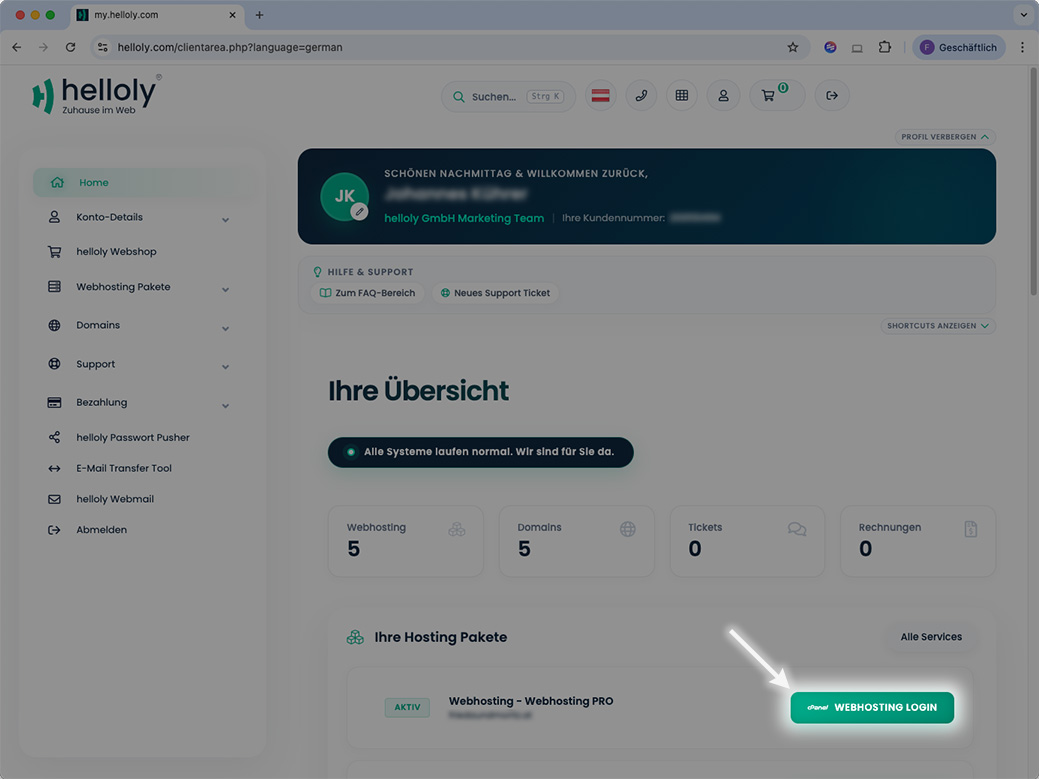
Click on Webhosting Login next to the desired hosting package.
-
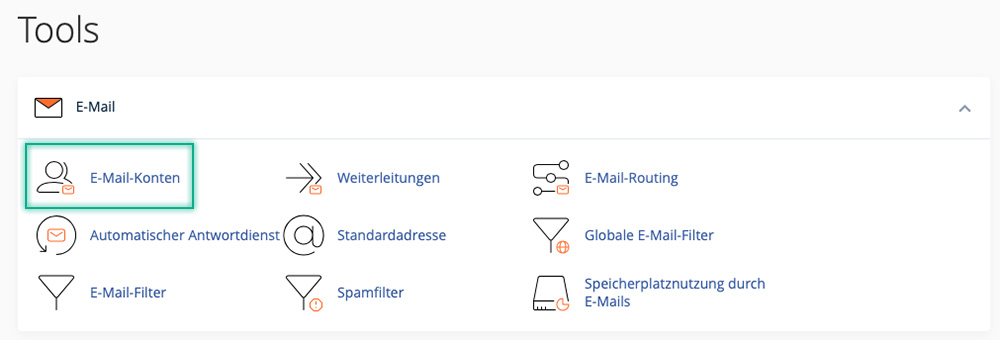
In cPanel, under Email, click Email Accounts.
-
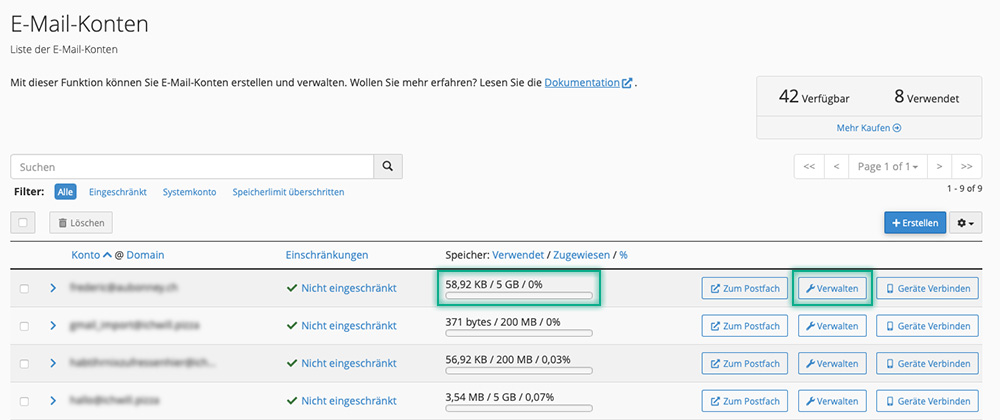
You will now see all email accounts and can view the current storage usage of an email mailbox in the Storage: Used / Allocated / % column.
-
To increase the allocated storage space for a mailbox, click on Manage for the relevant mailbox.
-
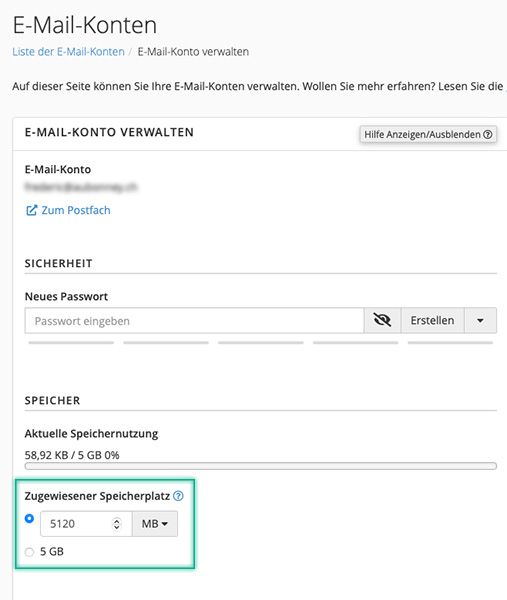
Now you can increase the allocated storage space under STORAGE.
-
Finally, click Update Email Settings to save the memory allocation.
Additional 10GB for your mailboxes
Increase the maximum storage space of your email accounts by 10 GB. The upgrade can also be ordered multiple times.
-
Access the Client Area via my.helloly.com
-
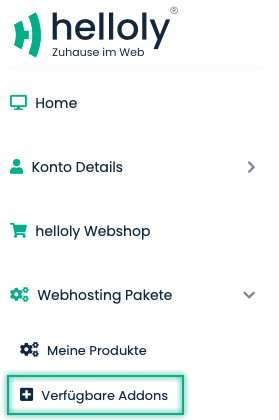
In the left menu, under Webhosting Packages, click on Available Addons
-
If you have booked multiple hosting packages, you can select the desired hosting package in the next step. Then continue by clicking on Order Now.

-
In the next step, you will be taken to the checkout to order the upgrade with costs.